
Record Cams.com with CaptureGem
Table of Contents
CaptureGem saves public Cams.com shows from the desktop app on Windows, macOS and Linux. No Cams.com account is needed.
Before you start
Download CaptureGem for Windows, macOS or Linux and open the desktop app. Use the latest version.
What to paste or type
Copy the room address, for example https://cams.com/model_username. The username is the last part.
Add the stream
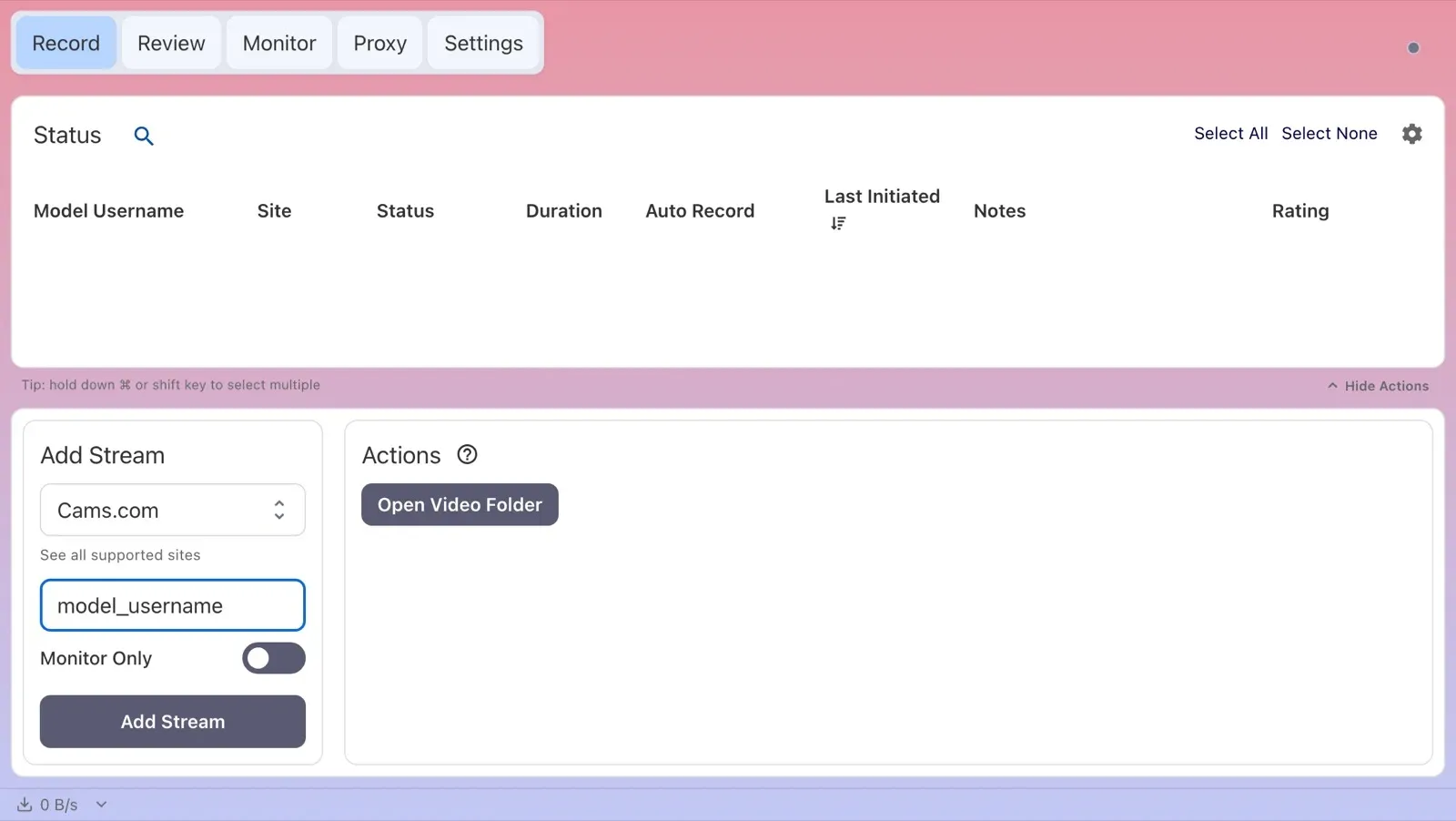
- Open the Record tab in CaptureGem.
- Paste the link into Enter URL or Username in the Add Stream panel. CaptureGem recognizes it and sets Select Website to Cams.com. To type just the username instead, choose Cams.com under Select Website first.
- Leave Monitor Only switched off. With it on, CaptureGem only watches the stream and doesn’t save a video.
- Click Add Stream.
What the status means
If the model is broadcasting publicly, the row changes to Recording within a few seconds; otherwise it shows Offline. Cams.com only tells CaptureGem whether a model is online, so there is no separate Private status. Errored means the room couldn’t be checked or recorded; check how the username is spelled.
Hover over a status to see more detail, including the reason behind an Errored status.
Free version or Premium
On the free version, each recording is saved for up to 5 minutes and you can add up to 10 models. Recording only starts if the model is live when you add or start them, so if they were offline, start the recording again once they’re back. Premium removes both limits and adds auto-record: select the model on the Record tab, open Modify Auto Record under Actions and choose Record Always. From then on CaptureGem records whenever the model comes online and starts again after a disconnect. Turning on Auto Record All Newly Added Models in Settings does the same for every model you add later. Live previews of everything that’s recording are on the Monitor tab.
Where the recording goes
After a recording stops, CaptureGem converts it into a video file, which can take a while for a long session. The Review tab lets you play, trim, tag or delete it, and Open Video Folder on the Record tab opens the folder that holds your files. Recordings are MP4 files by default. With Premium, each file runs up to 60 minutes by default and auto-record continues straight into the next one. The save folder, the file length (Cap Video Segments at Duration (Minutes)) and the container format are all in Settings; the settings overview on capturegem.com explains each option.
Cams.com notes and troubleshooting
- Quality: set a lower Cams.com limit under Max Resolution Per Site in Settings > Advanced Settings to save bandwidth and disk space.
- Recording ends early: when a show ends or goes private, the stream stops and so does the recording. With auto-record, CaptureGem records again once the model is back in a public show.
More help
- The full Cams.com recording guide on capturegem.com
- Download CaptureGem or compare plans
- Every site CaptureGem supports, and our guides for each site
- Your first CaptureGem recording, troubleshooting a recording and where CaptureGem keeps its files
If a recording keeps failing, update CaptureGem, check that the stream plays in your browser, and ask in the CaptureGem Discord. Premium members can also send a failed recording to support.
Loading comments...