CaptureGem vs OBS Studio: Encode Overhead and Rig Design
Table of Contents
OBS Studio is a production tool. Point it at a cam show and your recording machine becomes a real-time video studio: a browser plays the stream, OBS captures the window, and an encoder compresses the picture all over again, live, for as long as the show runs. CaptureGem skips that whole chain by saving the stream the site sends. That one design difference changes how you size the CPU and GPU, whether the machine needs a screen, and how you plan bandwidth and disk.
Quick answer
When the job is recording cam shows, CaptureGem is the lighter and more scalable choice. It downloads the source stream at the top available quality, so capture is limited mainly by network and disk rather than by encoder capacity, and it records many models as separate files. OBS Studio is the right tool for producing your own video: streaming, webcam and microphone recording, overlays and tutorials. On a rig, that’s where its encoder belongs.
Two pipelines, side by side
Recording a cam show with OBS:
- The browser downloads the stream, at whatever quality the site’s player picks.
- The browser decodes the video and renders the page around it.
- OBS captures that window or the whole display.
- OBS composites the scene, scaling it to your output resolution.
- An encoder, x264 on the CPU or a hardware encoder on the GPU, compresses the picture again.
- The file is written at the bitrate you set.
Recording a cam show with CaptureGem:
- The recorder downloads the site’s stream at the best quality offered.
- It writes the data to a temporary folder as it arrives.
- When the recording ends, it converts the data into a finished MP4 (or MKV), normally with a stream copy rather than a re-encode.
Every OBS step runs in real time for the whole show. Most of CaptureGem’s work is moving data from the network to the disk.
Resource by resource
| Resource | OBS screen capture | CaptureGem |
|---|---|---|
| CPU | Browser decoding and page rendering, plus the encode if you use x264 | Light during capture; conversion, preview grids and occasional repair afterwards |
| GPU | Compositing, browser video decode, and the hardware encoder if you use one | Not needed for capture |
| Display | The browser window must stay open and visible | No browser window needed |
| Network | One stream per open player | One stream per recording; live previews add none |
| Disk | Written at the bitrate you choose | Written at the source bitrate |
| Concurrency | One composited recording by default | Many separate recordings |
| Automation | Plugins or scripts only; unaware of model status | Premium auto-record that restarts after disconnects |
| Quality ceiling | Player size, page overlays and your encoder settings | The source stream |
The encode tax
Screen capture means compressing video that the site has already compressed. To keep the second copy close to the original you have to raise the bitrate, which costs disk, and spend encoder time, which costs CPU or GPU headroom. Moving the encode to a GPU’s hardware encoder takes pressure off the CPU, but you’re still re-compressing a picture in real time for every minute of every show. Anything drawn over the player, such as chat, menus or a buffering spinner, gets encoded into the file too.
CaptureGem’s normal path has no live encode at all. The exceptions are XCams, ManyVids and Superlive, which it captures through its built-in browser and converts to H.264 MP4 afterwards, so those sites do cost encoder time. Its post-recording jobs, converting the finished file and generating preview grids for the Review tab, run once per recording. Our explainers on hardware acceleration in CaptureGem and which resources capture actually uses cover what to monitor instead of encoder load.
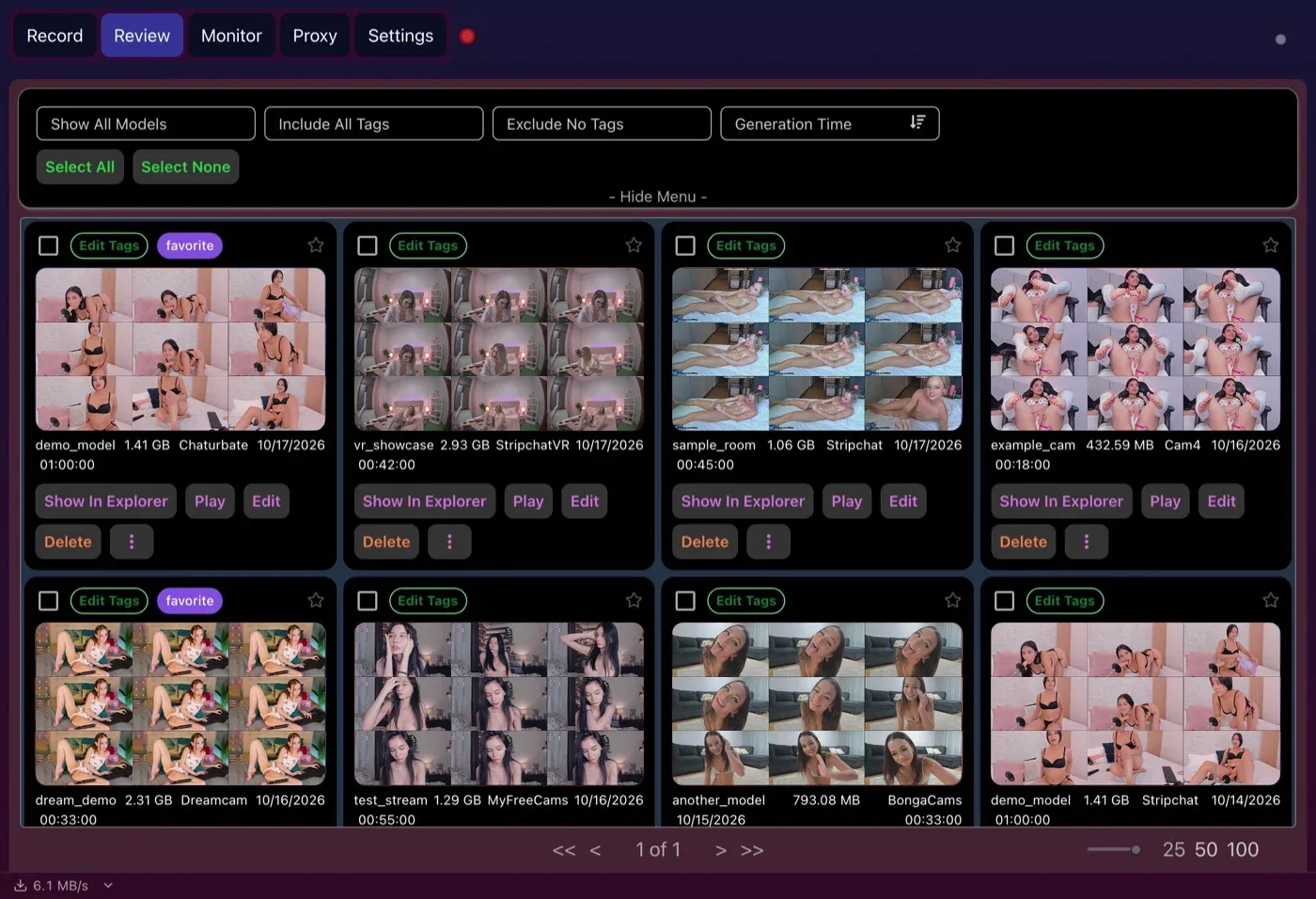
Preview grids are built once, after a recording finishes, rather than by an encoder running throughout the show.
Scaling past one model
OBS produces one composited recording by default. To capture several shows you can tile browser windows into a single scene, which squeezes every show into one file at a shared resolution, or you can add more OBS instances, plugins or scripts, each with its own browser and encoder. Either way, the load grows with every stream you add.
CaptureGem records each model as its own download and its own file, across different sites at once. The limits are the total bitrate your connection can carry and the write speed and free space of your drives. Its Max Concurrent Auto Recordings setting lets you cap the count to match what your line can sustain.
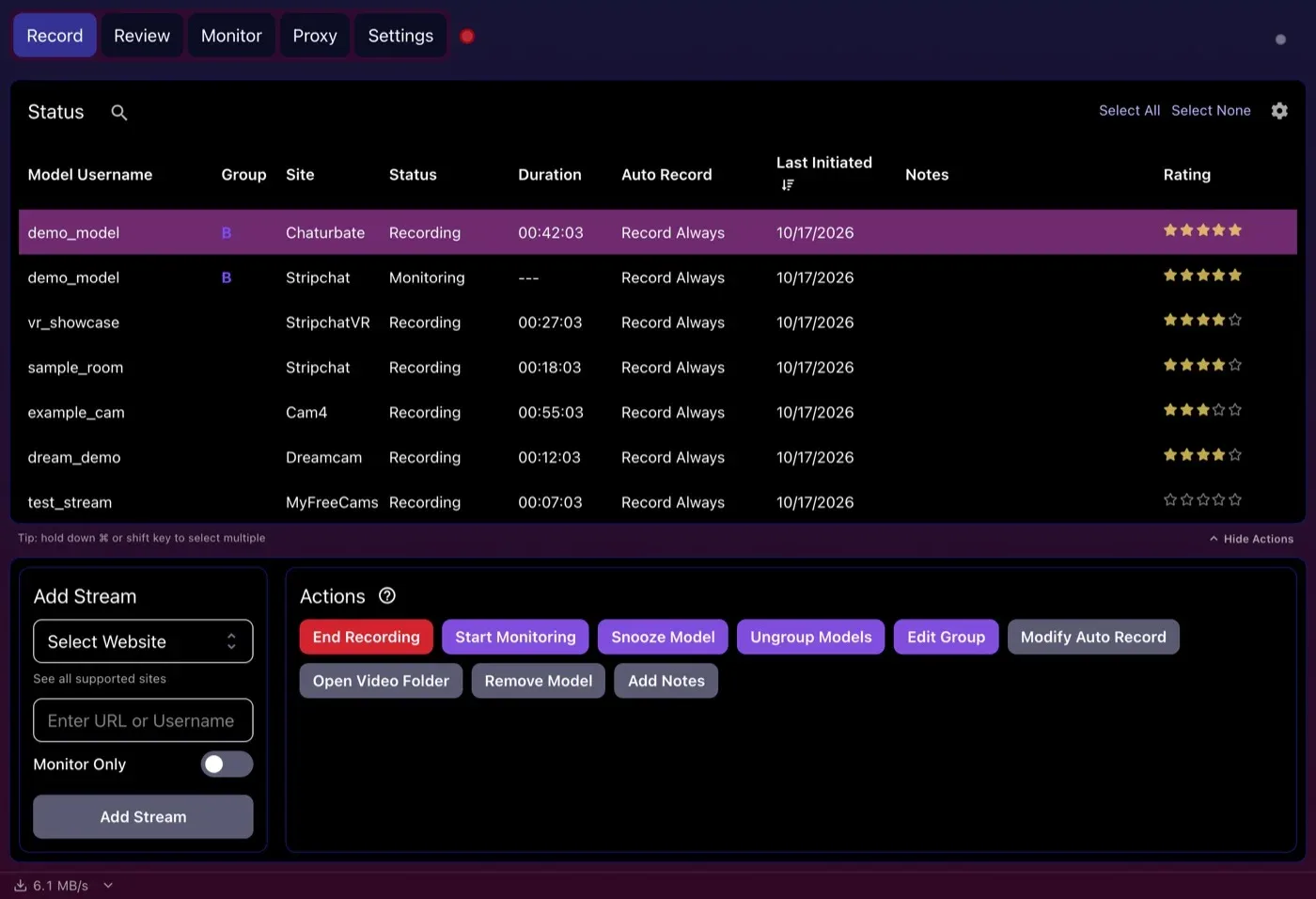
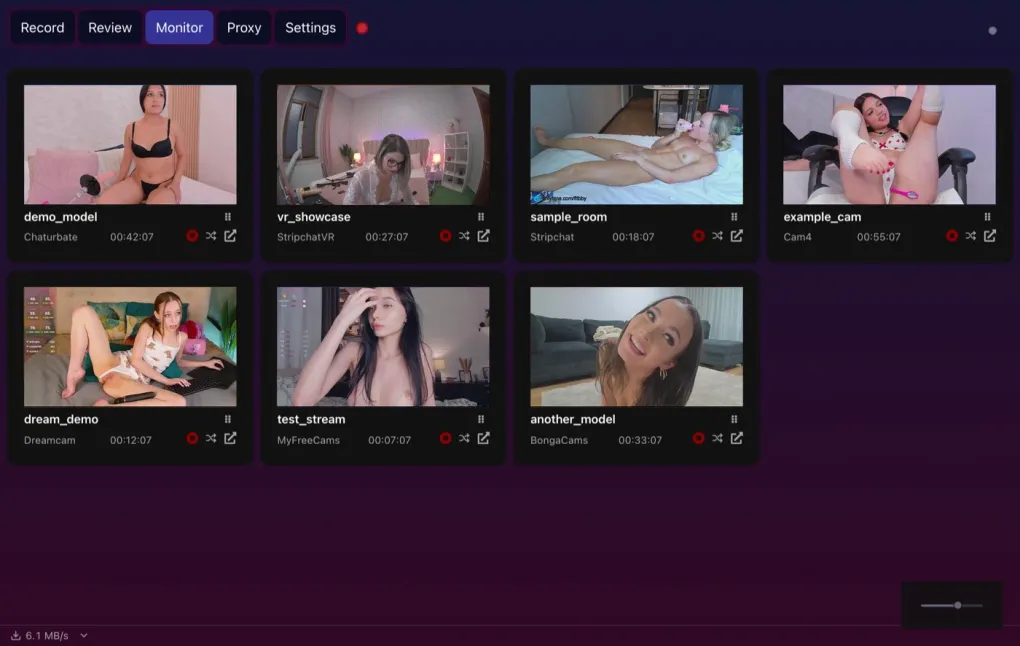
Several separate recordings running together, with total download speed shown at the bottom of the window. No browser windows are involved.
The always-on box
An OBS cam setup needs a desktop session with the browser open and on screen, and someone, or a script, to start and stop each recording. OBS has no concept of a model coming online.
A CaptureGem rig can run unattended. With Premium, set a model to Record Always and the app starts recording when they go live and restarts after a disconnect or network timeout. The Monitor tab tiles live previews of every recording in progress without fetching the streams again, so a quick check-in costs nothing extra on your connection. For advanced Linux setups, the recorder can also run headless without the desktop app, controlled through a local HTTP API; see running CaptureGem without a desktop and the official standalone guide. The headless route doesn’t cover every site: LiveJasmin, XCams, ManyVids and Superlive record through the desktop app, and CamSoda and AmateurTV use its built-in browser for status checks.
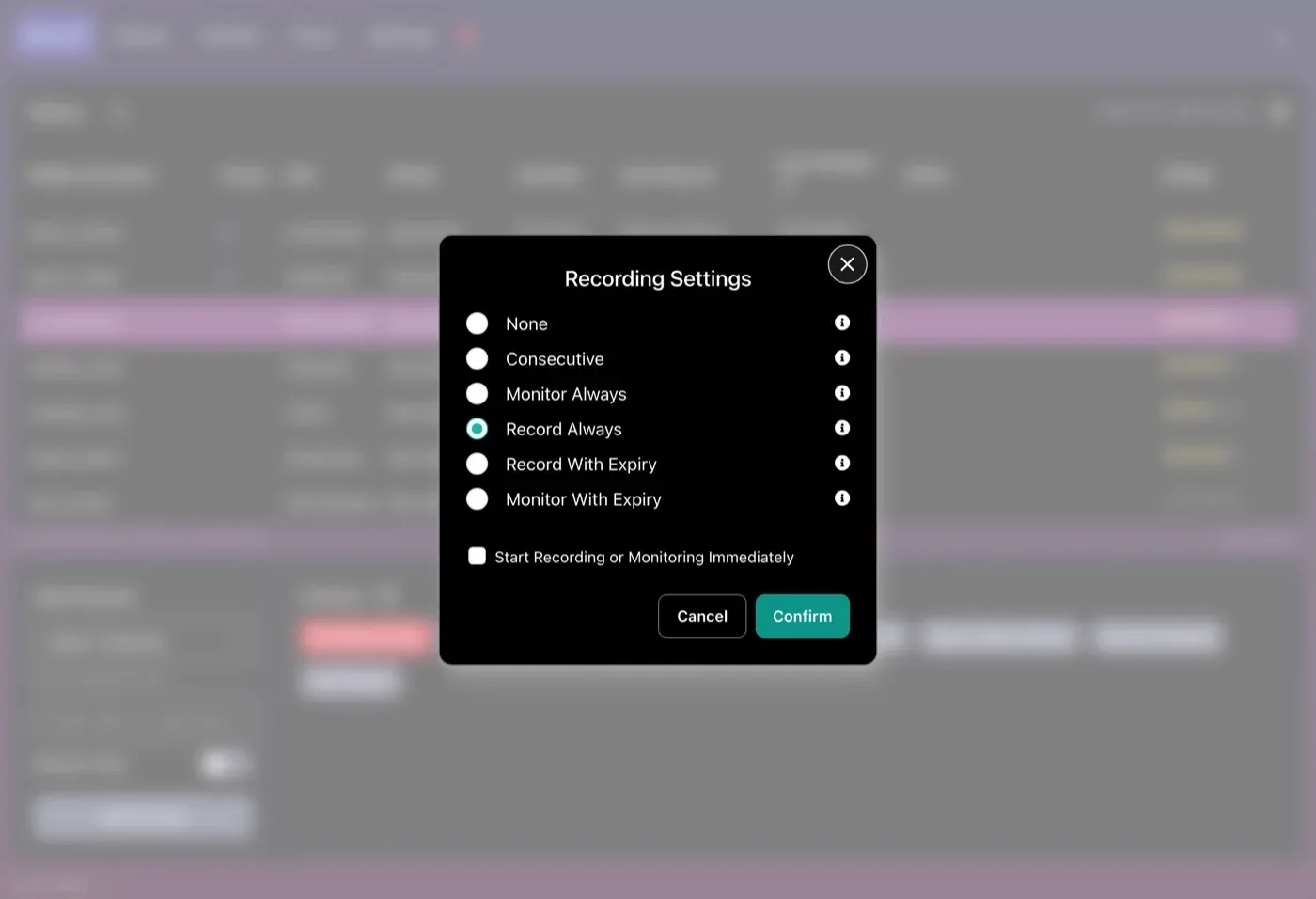
Choosing Record Always for a model is what lets a CaptureGem machine run without anyone at the keyboard (Premium).
Before leaving any machine to record on its own, work through our first-run checklist for a dedicated recording computer.
Storage and bandwidth planning
With OBS, disk use follows the bitrate you set, while network use follows whatever the player streams. With CaptureGem, both follow the source, so plan from what your models actually broadcast. Put CaptureGem’s temporary folder on a fast local drive and the finished-video folder on bulk storage, and keep Cap Video Segments at Duration (60 minutes by default) so long sessions split into manageable files. The Recording & Storage Calculator and our guide to bandwidth and storage limits help you size the drives.
Where OBS belongs in your rig
OBS is the best free tool for anything you produce yourself: live streams, webcam and microphone recording, scenes with overlays, gameplay and tutorials. Its recording formats include MKV, MP4, hybrid MP4 and MOV, and you choose the encoder, bitrate, output resolution and frame rate yourself; its plugin ecosystem is huge, too. That work is exactly where a capable CPU or a GPU encoder earns its keep. Because CaptureGem leans on the network and disks while OBS leans on the encoder, plenty of people run both. Test with both apps busy before you rely on one machine for both jobs.
Measure it on your own hardware
You don’t need our numbers; you can see the difference in a few minutes:
- Pick a public show and record it with OBS window capture and with CaptureGem at the same time.
- Watch per-process CPU and GPU use in Task Manager, Activity Monitor or your Linux system monitor: OBS plus the browser on one side, CaptureGem and its recorder process on the other.
- Stop both, then compare file sizes and step through frames from the two files side by side.
- Repeat with a second and third model to see how each approach scales.
Our benchmarking method explains how to push concurrency safely.
Which one should your rig run?
OBS Studio is the better fit if you’re producing, streaming or capturing your own camera, microphone or desktop, and you have the encoder headroom for it.
CaptureGem is the better fit if your goal is source-quality cam recordings, many models in parallel, a machine that records by itself, and a build sized for network and disk rather than real-time encoding.
Bottom line
Using OBS to record cam shows turns every show into a live encoding job that ties up a visible browser window and grows heavier with each extra stream. CaptureGem saves the stream itself, scales with your bandwidth and drives, and runs unattended with Premium. For cam recording rigs, it’s our recommendation. Download CaptureGem and try the side-by-side test above, then compare Premium plans.
Finally, only record the streams you’re allowed to keep. Treat performers with respect, and follow each platform’s rules and the law in your area.
Loading comments...